Here’s a fact that might surprise you: over 60% of websites that easily passed Google’s old First Input Delay (FID) metric are now failing its far more demanding replacement, Interaction to Next Paint (INP). If your performance strategy hasn’t evolved since the switch, your rankings are likely at risk. The goalposts haven’t just moved; they’re on a different field entirely.
Simply passing the Core Web Vitals assessment is no longer enough. As Google’s algorithms grow more sophisticated heading into 2026, they can better distinguish between a site that is technically fast and one that feels fast to a real user. This means the old tricks for LCP and CLS might not be enough to solve the complex responsiveness issues measured by INP, which often hide deep within your JavaScript execution.
This is where we move past theory. You will learn the exact workflow for using Chrome’s Performance Profiler to find specific INP culprits, a step-by-step guide to prioritizing render-blocking resources that hurt your LCP, and practical code patterns to prevent those frustrating layout shifts. We’ll give you the actionable plan to master the vitals that matter now and for the future.
The Evolution of Core Web Vitals: Why 2026 Demands a New Approach
For years, passing the Core Web Vitals test felt straightforward. If your First Input Delay (FID) was green, you were considered responsive. That era is over. With the official retirement of FID, Google has fully embraced Interaction to Next Paint (INP) as the definitive metric for user experience. This isn’t just a name change; it’s a fundamental shift in how Google measures and rewards site performance. FID only measured the delay on the very first interaction, a low bar that missed most real-world user frustration. INP, by contrast, evaluates the entire lifecycle of user interactions, from click to visual feedback.
From Lab Tests to Real-World Experience
The second major shift is Google’s increased reliance on real-user monitoring (RUM) data collected via the Chrome User Experience Report (CrUX). While lab data from tools like Lighthouse is excellent for debugging, it’s no longer the primary signal for ranking. Your perfect score on a high-end developer machine means little if your actual users on mid-range phones with spotty 4G connections are having a slow experience. Google now prioritizes this field data, meaning your ranking is directly tied to what your audience actually encounters.
Consider an e-commerce site with a multi-faceted product filter. A user clicks a checkbox for ‘Brand A’, then one for ‘Size M’, and finally a color swatch. Under the old FID model, only the first click’s delay was measured. With INP, if updating the product grid after that third click takes 500ms and the UI freezes, that entire duration contributes to a poor INP score. This is the kind of lag that causes users to abandon a page, and it’s exactly what Google is now penalizing.
Looking ahead to 2026, we anticipate Google will tighten the ‘Good’ thresholds for all three metrics. The standards for LCP, INP, and CLS are not static. As the web gets faster, the definition of a “good experience” evolves. Simply meeting today’s minimum requirements is a short-term strategy. The new approach demands building for sustained, excellent performance, not just scraping by on a technicality.
Mastering LCP (Largest Contentful Paint) in 2026
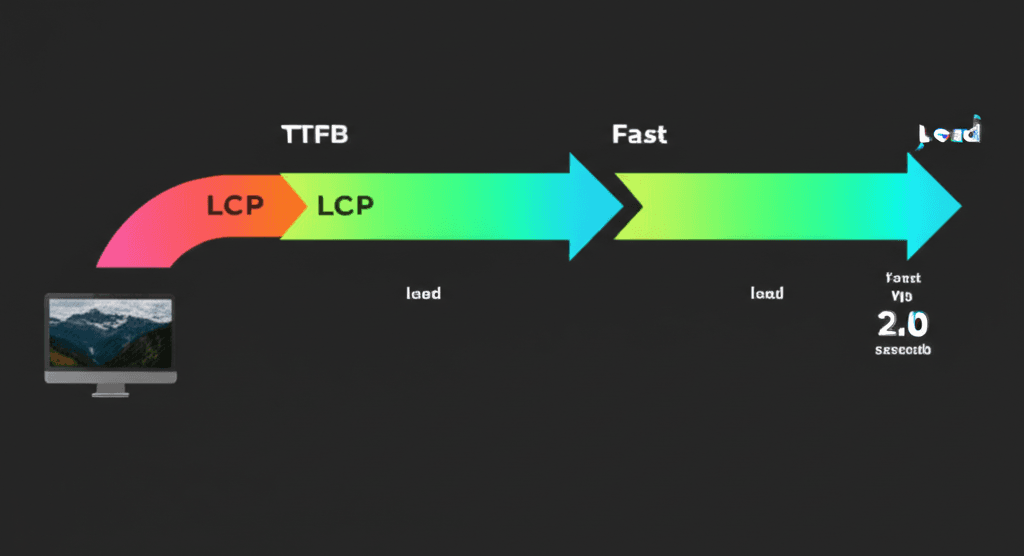
Let’s shift gears for a moment. By 2026, we’ve moved past the simple advice of “compress your images.” While important, that’s table stakes. Mastering LCP now means controlling the entire delivery chain, from the initial server request to the final pixel render. Your LCP score is a direct result of a sequence of events, and optimizing each one is how you win.
Shrinking Time to First Byte (TTFB) at the Edge
Your LCP can’t even begin to load until your server responds. A slow Time to First Byte (TTFB) is a common LCP killer. The fix is to move your logic closer to your users. Instead of relying on a single origin server, use a global CDN with edge computing functions. For example, an e-commerce site can use Vercel Edge Functions or Cloudflare Workers to render product pages at a data center near the shopper. This means a request from London is handled in London, not California, slashing network latency and often cutting TTFB by hundreds of milliseconds.
Prioritizing Your Hero Element
Once the browser receives the initial HTML, it starts a race to download resources. You need to be the race director. First, identify your LCP element—it’s usually the main hero image, a video poster, or a large block of text. Then, give it an explicit instruction using the Fetch Priority API. By adding fetchpriority="high" to your main homepage banner’s <img> tag, you are telling the browser to download that image before other, less critical resources like a tracking script or a footer icon. This simple attribute can shave precious moments off your LCP time by ensuring the most visible content loads first.
Automating Media Delivery
Manually saving images for the web is a thing of the past. Modern workflows rely on automated media platforms or CDNs that handle optimization on the fly. These services detect the user’s browser and serve the most efficient format available, delivering next-gen AVIF files to compatible browsers while providing WebP or JPEG as fallbacks. For content below the fold, implement programmatic lazy-loading. Use the Intersection Observer API to ensure that secondary images, videos, or heavy components are only requested from the network right before they scroll into view, keeping the initial page load lean and focused on rendering that all-important LCP element.
Conquering INP (Interaction to Next Paint): The New King of Responsiveness
While First Input Delay (FID) only measured the wait time before an interaction began, INP measures the entire duration from a user’s click, tap, or keypress until the next frame is painted on screen. It’s a far more accurate reflection of user-perceived sluggishness. A high INP score means your page feels janky and unresponsive. To fix it, you first need to understand that every interaction has three parts:
Input Delay: The time the browser waits before it can even start processing the event, usually because the main thread is busy with another task.
Processing Time: The actual execution time of your event handler code. This is where most INP problems hide.
Presentation Delay: The time it takes the browser to calculate layout, paint pixels, and display the visual changes.
So, how do you find the code that’s causing the delay? Your best tool is the Chrome DevTools Performance profiler. Record a performance profile while you perform the slow interaction on your site—like clicking a complex filter button. Stop the recording and look for long red-bannered “Long Tasks” in the main thread timeline. Clicking on one of these tasks reveals the exact function calls in the “Bottom-Up” tab that are consuming all the time.
Practical Fixes for a Snappy UI
Once you’ve identified the slow function, you have several strategies. Imagine a dashboard where clicking a “Generate Report” button freezes the UI because it’s processing a massive array of data. Instead of running this calculation in one monolithic block, you can break it up. A simple but effective technique is to yield to the main thread using setTimeout(..., 0). This schedules the rest of your function to run in a subsequent task, giving the browser a moment to breathe and update the UI, perhaps showing a loading spinner.
For more complex scenarios, consider offloading heavy computation to a Web Worker. This runs your script on a separate background thread, leaving the main thread completely free to handle user interactions. Your main script simply sends the data to the worker and listens for the results. Framework-specific solutions like code splitting with React.lazy also help by reducing the amount of JavaScript that needs to be parsed and executed upfront, preventing main-thread blockage before interactions even happen.
Eliminating CLS (Cumulative Layout Shift) for a Stable User Experience
Now, you might be wondering what causes these jarring shifts and how to stop them. The most frequent offender is media without defined dimensions. When you place an image tag like <img src="product.jpg">, the browser doesn’t know how much space to save for it. Once the image downloads, it suddenly appears, pushing all surrounding content down. The fix is simple: always provide width and height attributes. These attributes tell the browser the image’s intrinsic aspect ratio, allowing it to reserve the correct vertical space immediately, even before the image file is fully loaded. For responsive containers, the modern CSS aspect-ratio property achieves the same goal with more flexibility.
Handling Late-Loading Content
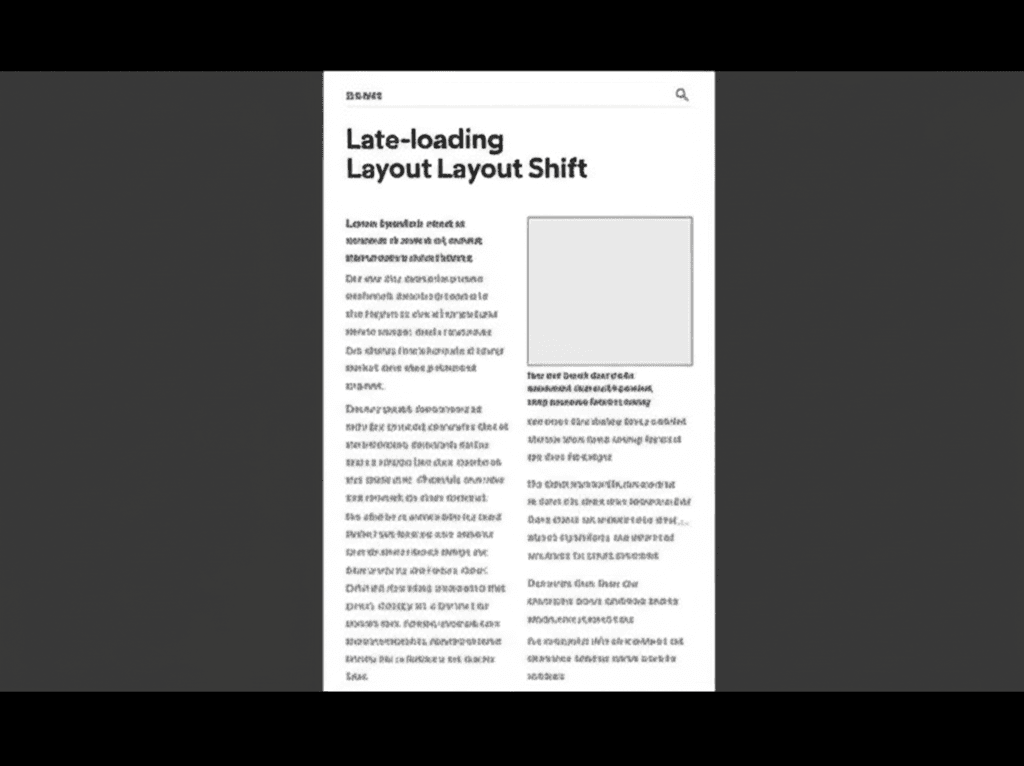
Dynamically injected content is another common source of layout shifts. Consider a newsletter sign-up bar that loads and pushes its way onto the top of the page. Instead of inserting it into the document flow, you can use CSS to overlay it or animate it in with a transform, which doesn’t affect the layout of other elements. For third-party ads or iframes with unpredictable dimensions, the best strategy is to reserve space. Wrap the ad slot in a container <div> and apply a min-height corresponding to the most likely ad size. For example, a “Medium Rectangle” ad slot would get a container with a min-height: 250px;. When the ad finally renders, it fills a pre-allocated space instead of creating one.
Taming Web Fonts
A more subtle cause of CLS comes from web fonts. You’ve likely seen it: the text appears in a default system font, and then visibly shifts as your custom web font loads (a “Flash of Unstyled Text” or FOUT). While using font-display: swap is good for performance, it actively causes this layout shift. The professional-grade solution is to minimize the dimensional difference between the fallback font and the web font. You can use tools to find a system font that closely matches your web font’s x-height and spacing. Alternatively, you can use newer CSS properties within your @font-face declaration to adjust the fallback font’s size, ascent, and descent to more closely mimic the final web font, making the swap nearly invisible.
Your 2026 Toolkit: Proactive Monitoring and Future-Proofing
Fixing Core Web Vitals issues after they hurt your rankings is a losing game. The modern approach is to prevent performance regressions from ever reaching production. This requires a shift from reactive fixes to a proactive monitoring and defense system. Think of it as building an immune system for your website’s performance, not just treating symptoms as they appear.
Setting Up a Dual-Data Monitoring Stack
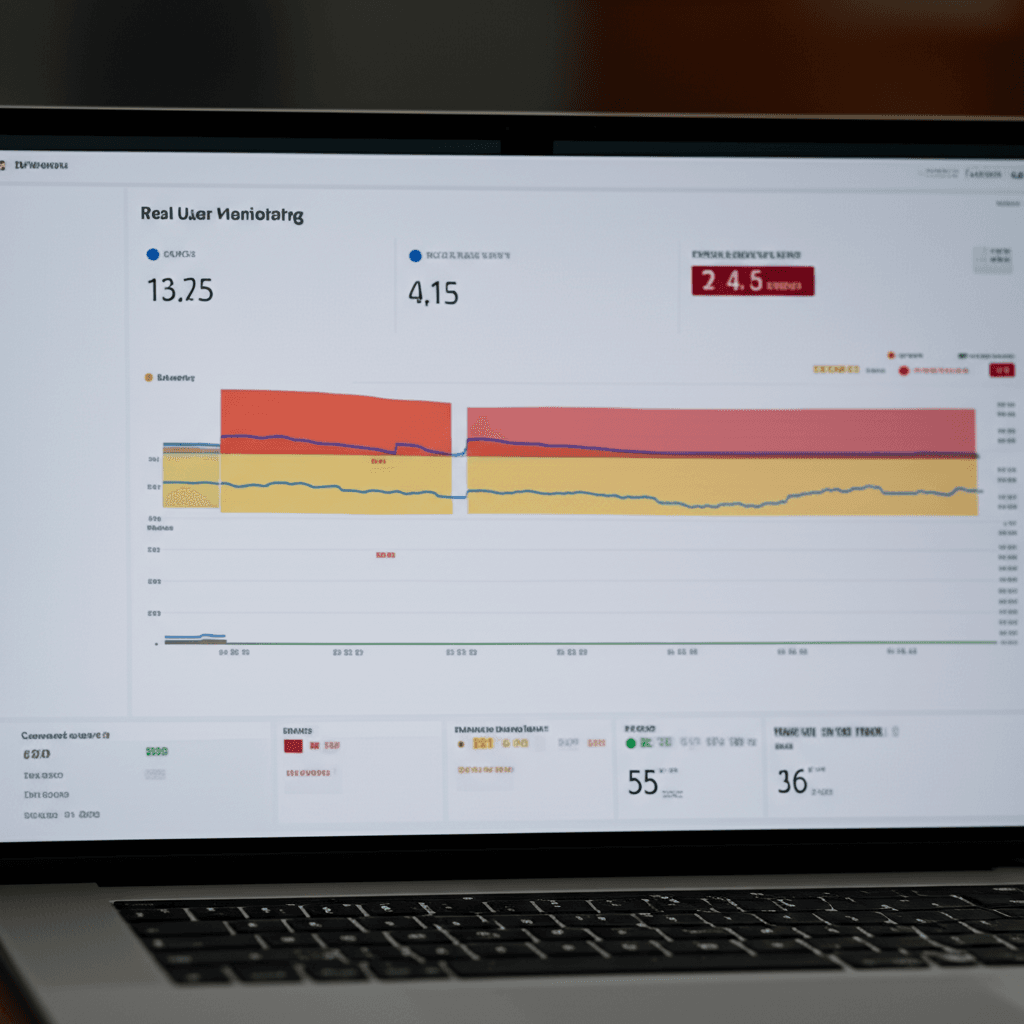
Your foundation must combine two types of data. First, you need lab data from controlled tests using tools like Lighthouse. This gives you consistent, reproducible results for your development cycle. Second, you must have Real User Monitoring (RUM) data to see how your site actually performs for people on different devices and networks. The free Chrome User Experience Report (CrUX) API provides a great baseline, while commercial services like Datadog or Sentry offer more granular, real-time insights. Lab data tells you if a code change is theoretically fast; RUM data tells you if it’s fast for a real user in Brazil on a 4G connection.
Automating Defense with Performance Budgets
A performance budget is a set of limits for your key metrics. You define thresholds—for instance, LCP must not exceed 2.5 seconds, and your JavaScript bundle size must stay under 200KB. Then, you integrate these checks directly into your CI/CD pipeline using tools like Lighthouse CI. Here’s a real-world scenario: a developer tries to merge a feature that adds a large, unoptimized library. The automated check fails the build because it violates the JavaScript budget, flagging the INP risk. The problem is stopped before a single user is affected.
Predictive Insights with AI Diagnostics
The final layer of your toolkit involves AI-powered diagnostics. These tools are moving beyond simply reporting past issues. By integrating with your code repository and RUM data, they can now predict performance bottlenecks. For example, an AI tool can analyze a new pull request and flag that a specific DOM manipulation pattern is highly correlated with Cumulative Layout Shift for users on mobile devices. This allows your team to address complex, pattern-based problems that traditional static analysis would miss, truly future-proofing your user experience.
Your Next Move: From Theory to Traffic
Mastering Core Web Vitals isn’t about chasing arbitrary scores; it’s about engineering a genuinely fast and stable user experience. The principles behind LCP, INP, and CLS will only become more integrated into Google’s evaluation of site quality. By optimizing for the person on the other side of the screen—ensuring they see content quickly, can interact without delay, and aren’t frustrated by shifting layouts—you are future-proofing your search performance against algorithm updates.
Don’t wait for your rankings to drop. Use Google’s PageSpeed Insights now to analyze your site and start implementing these 2026-ready strategies today.
Frequently Asked Questions
What is the most important Core Web Vital for 2026?
While all three are critical for rankings, INP (Interaction to Next Paint) is the primary focus as it directly measures the user's perception of your site's responsiveness to their actions. It replaced FID and is often the most complex to optimize.
Are 'Good' Core Web Vitals a guaranteed top ranking on Google?
No. Having 'Good' scores is a significant positive ranking signal and is becoming table stakes for competitive queries. However, Google still uses hundreds of other factors, including content relevance, backlinks, and overall user experience.
How can I check my Core Web Vitals for free?
You can use several free Google tools. PageSpeed Insights provides both lab and field (real-user) data for a specific URL. The Google Search Console Core Web Vitals report gives you an overview of your entire site's performance over time.