Your XML sitemap is probably lying to Google. It’s a statement that sounds harsh, but I see it constantly when auditing new sites. A default, auto-generated sitemap gets submitted to Google Search Console, filled with redirect chains, non-canonical URLs, and pages you’d rather keep hidden. You think you’re providing a helpful map, but you’re actually handing the crawler a confusing mess of dead ends and duplicate destinations.
A well-crafted sitemap, however, is one of the most direct ways to communicate with search engines. It isn’t just a list; it’s a strategic declaration of your most important content. It tells Google precisely what to crawl and which pages represent the highest value on your domain, especially when those pages are buried deep within your site’s architecture.
This guide will show you how to stop sending mixed signals. We’ll move beyond the basic “generate and submit” advice. You will learn how to build a clean sitemap that accelerates indexing, how to properly configure it within Google Search Console, and how to use the coverage reports to find and fix the exact issues holding your site back.
What is an XML Sitemap and Why is it Crucial for SEO?
I remember working with a new e-commerce client years ago. They were adding dozens of fantastic products every week, but for their first month, those pages were practically invisible on Google. The team was frustrated. They had great content, but no organic traffic to show for it. The problem wasn’t the quality of their pages; it was that Google’s crawlers simply couldn’t find them fast enough. We were leaving discovery entirely up to chance.
That’s where the XML sitemap comes in. Think of it as a detailed roadmap you hand directly to search engines. It’s not a page for your users; it’s a simple, machine-readable file (usually found at yourdomain.com/sitemap.xml) that lists every important URL on your website. Instead of asking Google to wander through your site by following links, you’re giving it a complete directory. This direct communication is a foundational piece of technical SEO.
How a Sitemap Improves Your SEO
The main benefit is improved crawlability. Search bots can miss pages, especially on large sites, or pages that aren’t well-linked internally—what we call “orphaned pages.” A sitemap ensures that even your most hidden-away content gets seen. This directly leads to faster indexing. For that e-commerce client, once we submitted a proper sitemap, their new products went from being indexed in weeks to just a couple of days. We were explicitly telling Google, “Hey, look at this new URL!”
A sitemap also helps Google understand your site’s structure. While a standard sitemap covers your pages, you can also create specialized ones for different content types:
Image Sitemaps: To help get your product photos and graphics indexed in Google Images.
Video Sitemaps: To provide helpful context about video content on your pages.
News Sitemaps: A special format for approved Google News publishers to get articles indexed rapidly.
Ultimately, a sitemap removes the guesswork. You’re not hoping Google finds your new blog post; you’re telling Google it exists. It’s one of the simplest yet most effective ways to build a better relationship with search engines.
How to Generate Your XML Sitemap (The Right Way)
I once had a client, a brilliant baker, whose website was a mess behind the scenes. She’d heard about sitemaps and, bless her heart, tried to create one by hand in a text file. Every time she added a new cake to her gallery, she’d forget to update the file. Her sitemap was perpetually out of date, filled with typos, and actively confusing search engines. It was a classic case of good intentions leading to a technical headache. We fixed it in about five minutes. And this is where things get practical.
Forget manual text files. Your goal is to generate and maintain your sitemap with the least amount of effort. Luckily, there are tools for every type of website.
Method 1: Use Your Content Management System (CMS)
For the vast majority of website owners, this is the answer. If you use WordPress, an SEO plugin like Yoast SEO or Rank Math will automatically create and update your sitemap for you. You just install the plugin, check a box in the settings, and you’re done. It’s truly set-it-and-forget-it. Platforms like Shopify and Wix go even further, generating a sitemap for you by default. You don’t have to do a thing; it just exists at yourstore.com/sitemap.xml.
Method 2: Use an Online Generator
If you have a simple, static HTML website without a CMS, online tools are your best friend. Websites like XML-Sitemaps.com will crawl your site’s public pages and generate a downloadable sitemap file for you. The main drawback is that you have to remember to re-run the process and re-upload the file whenever you add new pages.
A Note on Sitemap Tags
Regardless of how you create it, your sitemap uses simple tags to communicate with search engines. The most important are:
<loc>: This is the absolute URL of the page. It’s the only required tag.
<lastmod>: The date the page was last modified. This is highly recommended as it helps Google prioritize crawling fresh content.
<changefreq> and <priority>: You’ll see these tags in older guides. While they suggest how often a page changes and its importance relative to other URLs on your site, Google has stated they largely ignore these values now. Focus on keeping your <lastmod> dates accurate. That’s what really matters.
Step-by-Step: Submitting Your Sitemap to Google Search Console
I remember working with a small e-commerce site years ago. They had just launched hundreds of new product pages but saw zero traffic from Google. They had done everything right—or so they thought. The problem? They never told Google the new pages existed. They never sent the invitation. Submitting a sitemap is exactly that: a formal invitation for Google to come and see what you’ve built. Here’s what really matters though. It’s not just about submitting it once; it’s about establishing a clean, direct line of communication.
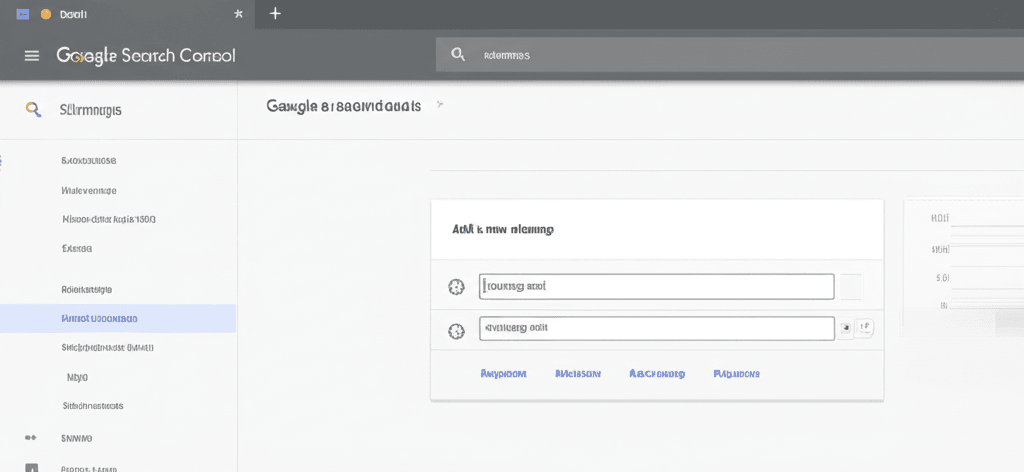
First, this entire process assumes your site is already verified in Google Search Console. If it’s not, stop and do that first. Once you’re logged into the correct GSC property, look at the menu on the left-hand side. Under the ‘Indexing’ section, you will find ‘Sitemaps’. Click it.
Finding and Adding Your Sitemap URL
You’ll see a simple field at the top of the page that says ‘Add a new sitemap’. Now you just need the URL. For most sites using a CMS like WordPress with an SEO plugin, this is usually /sitemap.xml or, more commonly, /sitemap_index.xml. Just type that part of the URL—the part after your domain name—into the box and hit Submit. That’s it. You’ve sent the invitation.
Understanding the Status Report
After you submit, GSC will give you a status. Don’t panic if it doesn’t say ‘Success’ immediately. So, what happens next? Here’s the breakdown of what you might see:
Success: This means Google has found and queued your sitemap for processing. It doesn’t mean all the URLs are indexed yet, just that the file was received correctly.
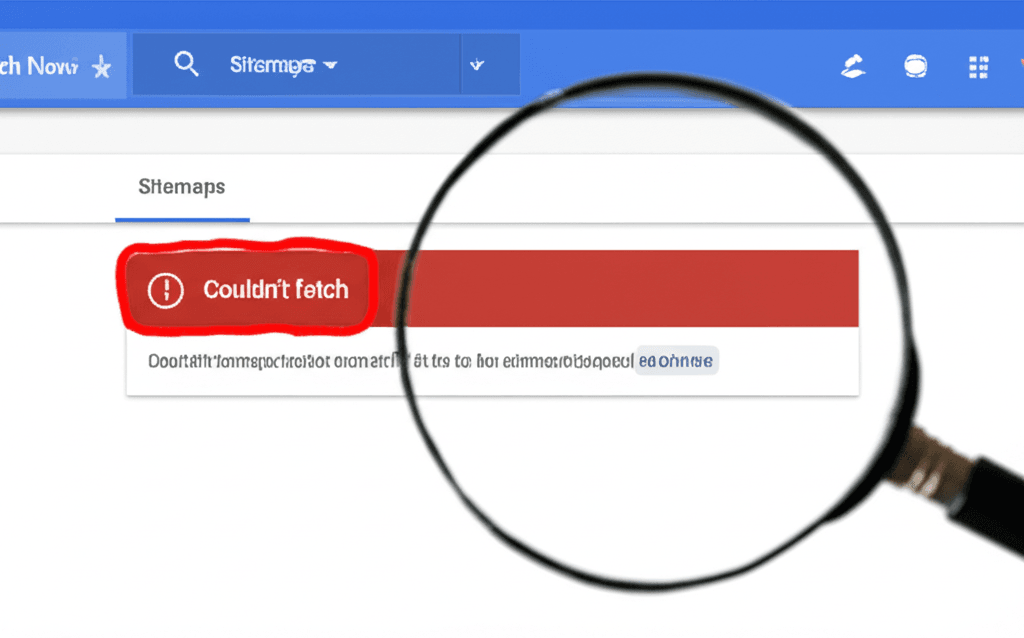
Couldn’t fetch: This is an access problem. It could be a simple typo in the URL, your server being down, or your robots.txt file accidentally blocking Google. Double-check the URL and make sure it loads in your browser.
Has errors: Google read the file but found problems inside it, like pages that redirect or return an error. Click on the status to see a detailed report of which URLs are causing the trouble so you can fix them.
I once saw a persistent ‘Couldn’t fetch’ error for a client, and it turned out their web host’s firewall was blocking Google’s crawler. The fix was a simple support ticket, but it shows that the issue isn’t always in the sitemap itself.
Monitoring & Troubleshooting Common Sitemap Errors in GSC
I remember a client years ago who was completely stumped. They had meticulously built their sitemap, submitted it, and received the green “Success” message in Google Search Console. Yet, weeks later, their most important new pages weren’t getting indexed. They felt they had done everything right. The sitemap was valid. The submission was successful. So, what was the problem? They had submitted the map but never checked back on it.
This brings us to something often overlooked: the sitemap report is not just a one-time confirmation. It’s a living diagnostic tool. In GSC, under Indexing > Sitemaps, you can click on your submitted sitemap to see its status. A green “Success” is great, but the real story is in the details below, especially the “See page indexing” report. This is where Google tells you precisely what it thinks of the URLs you’ve provided.
Common Culprits Behind GSC Errors
Most errors fall into a few predictable categories. The most alarming one is ‘Couldn’t fetch’. This means Google couldn’t even open the file. Before you panic, check three things: your robots.txt isn’t blocking the sitemap URL itself, your server isn’t throwing a 5xx error, or you simply didn’t make a typo when submitting the URL. It happens more than you’d think.
More often, you’ll see errors for specific URLs within an otherwise successful sitemap. The two I see most are:
Submitted URL blocked by robots.txt: This is a classic contradiction. You’ve told Google, “Please index this page,” in your sitemap, but your robots.txt file says, “Don’t you dare crawl this section.” For example, a rule like Disallow: /services/ will block every URL in that directory, triggering this error for any service pages in your sitemap. You need to align your intentions by either removing the pages from the sitemap or adjusting the robots.txt rule.
Submitted URL marked ‘noindex’: This is another mixed signal. The page itself contains a meta tag—<meta name="robots" content="noindex">—that explicitly tells search engines not to index it. You’re asking Google to index a page you’ve simultaneously forbidden it from indexing. The fix is simple: remove the ‘noindex’ tag from the page’s HTML if you want it indexed.
Make a habit of checking this report after any major site change—a redesign, a content audit, or a migration. Your sitemap is your direct line to Google, and these error reports are Google’s way of talking back.
Advanced Sitemap Optimization Strategies
I once worked with an e-commerce client whose website had ballooned to over 100,000 URLs. Their sitemap was a single, monstrous file that took ages to generate. When we found indexing problems in Google Search Console, trying to diagnose the issue was impossible. It was a digital mess. This taught me a hard lesson: a basic sitemap is just a starting point. The real power comes from turning that simple list into a strategic tool.
From a Single File to a Strategic Index
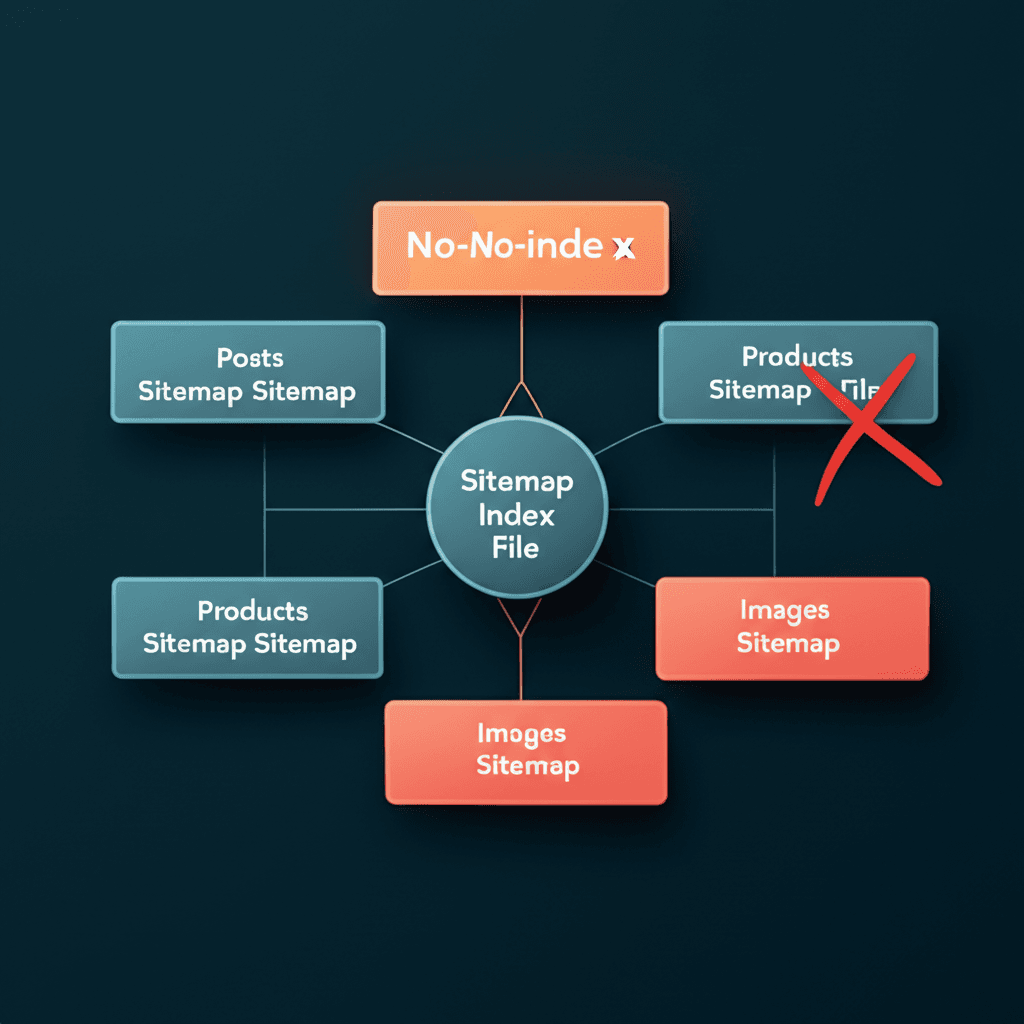
When your site grows beyond a few hundred pages, a single sitemap file becomes inefficient. Google has limits—50,000 URLs or 50MB per file. The solution is a sitemap index file, which is essentially a sitemap of your sitemaps. But don’t just split your URLs randomly. Think like a librarian. Create separate sitemaps for different sections of your site:
post-sitemap.xml
page-sitemap.xml
product-sitemap.xml
image-sitemap.xml
This organizational method is a gift for diagnostics. In Google Search Console, you can filter coverage reports by each specific sitemap. Suddenly, you can see if your products are struggling to get indexed, rather than just guessing from a massive list of undifferentiated URLs.
The Art of What You Leave Out
Here’s the most important shift in thinking: your sitemap should only contain your best, most valuable URLs. It is a curated list for Google, not a complete archive of every page on your server. Your sitemap must be dynamic, automatically updating as you add, edit, or remove content. More importantly, you must practice strategic exclusion. Remove URLs that offer little value, such as thin content pages, tag archives with duplicate content, or non-canonical versions of pages. For instance, an e-commerce filter URL like /shoes?color=red should not be in your sitemap. By removing this noise, you guide Google’s limited crawl budget toward the pages that actually drive business, ensuring your most important content gets the attention it deserves.
Your Conversation with Google Has Just Begun
I remember the first time I submitted a sitemap. I hit the button and expected the floodgates of organic traffic to swing open. The reality was a slow trickle. That’s when it clicked: a sitemap isn’t a magic wand; it’s the start of a conversation. You’ve just handed Google a clear map to your most valuable pages, a powerful statement about what you want indexed. Now, the real optimization begins by listening to Google’s reply through Search Console. With that map in hand, your next move is clear: audit your site’s ‘Page Indexing’ report to find and fix your next big SEO opportunity.
Frequently Asked Questions
How often should I submit my sitemap to Google?
You only need to submit your sitemap once. Google will recrawl it periodically. If you make significant changes to your site structure or sitemap location, you should resubmit it.
What is the difference between an HTML and an XML sitemap?
An XML sitemap is specifically for search engines to help them find and index your content. An HTML sitemap is designed for human visitors to help them navigate your website.
Does having an XML sitemap guarantee my pages will be indexed?
No, a sitemap does not guarantee indexing. It is a strong suggestion to Google about which pages you consider important. Indexing also depends on content quality, site authority, and technical factors.
What is the maximum size for an XML sitemap?
A single XML sitemap file can contain a maximum of 50,000 URLs and must be no larger than 50MB (uncompressed). For larger sites, you should use a sitemap index file to manage multiple sitemaps.