I’ve seen more accessibility audits fail on simple form labeling and focus management than on any other single issue. A visually perfect design can become a complete dead-end for someone using a screen reader or keyboard navigation. It’s a stark reminder that what we see isn’t what every user experiences, and the most common failures are often the easiest to fix once you know what to look for.
The Web Content Accessibility Guidelines (WCAG) can feel like a dense, technical manual, leaving your team unsure where to even start. This guide changes that. We bypass the abstract theory to give you a practical roadmap for implementing WCAG 2.1 standards. You’ll get actionable techniques for everything from achieving proper color contrast ratios (and testing them) to writing effective alt-text and managing ARIA roles for complex components.
Our goal is to equip you with the exact steps to build not just compliant, but genuinely usable websites for everyone. You will learn how to audit your own work, fix common problems, and integrate accessibility into your design process from the beginning, saving you time and costly retrofits down the line.
What is Web Accessibility and Why Does It Matter?
Web accessibility, often shorthanded as A11y, is the practice of designing your website so that anyone can use it. This includes people with permanent, temporary, or situational disabilities affecting their vision, hearing, motor skills, or cognitive abilities. It’s not an edge case. It’s a core component of professional web design.
Think about an e-commerce site. A user with low vision might rely on a screen reader to announce product descriptions and button labels. If your “Add to Cart” button is just an icon with no descriptive text, that user is stuck. A simple code adjustment—adding an ARIA label—makes the difference between a lost sale and a loyal customer. This is accessibility in action: small changes with a massive impact on user experience.
The Business Case for Accessibility
An accessible website directly benefits your bottom line. You instantly expand your potential market to include the millions of people with disabilities who have disposable income. Good accessibility practices, like using semantic HTML and providing alt text for images, also improve your Search Engine Optimization (SEO). Search engines and screen readers both rely on a well-structured site to understand content. Furthermore, a commitment to inclusivity enhances your brand reputation, showing customers that you value everyone’s business.
Legal and Ethical Imperatives
Beyond business goals, accessibility is a legal and ethical responsibility. Laws like the Americans with Disabilities Act (ADA) in the US and the European Accessibility Act (EAA) mandate digital access. Failure to comply can lead to expensive lawsuits and brand damage. But more than just avoiding litigation, practicing inclusive design is simply the right thing to do. It ensures that the digital world is open to all, reflecting a commitment to social responsibility and basic fairness. Your website is your digital front door; is it open to everyone?
The 4 Pillars of WCAG: Understanding the POUR Principles
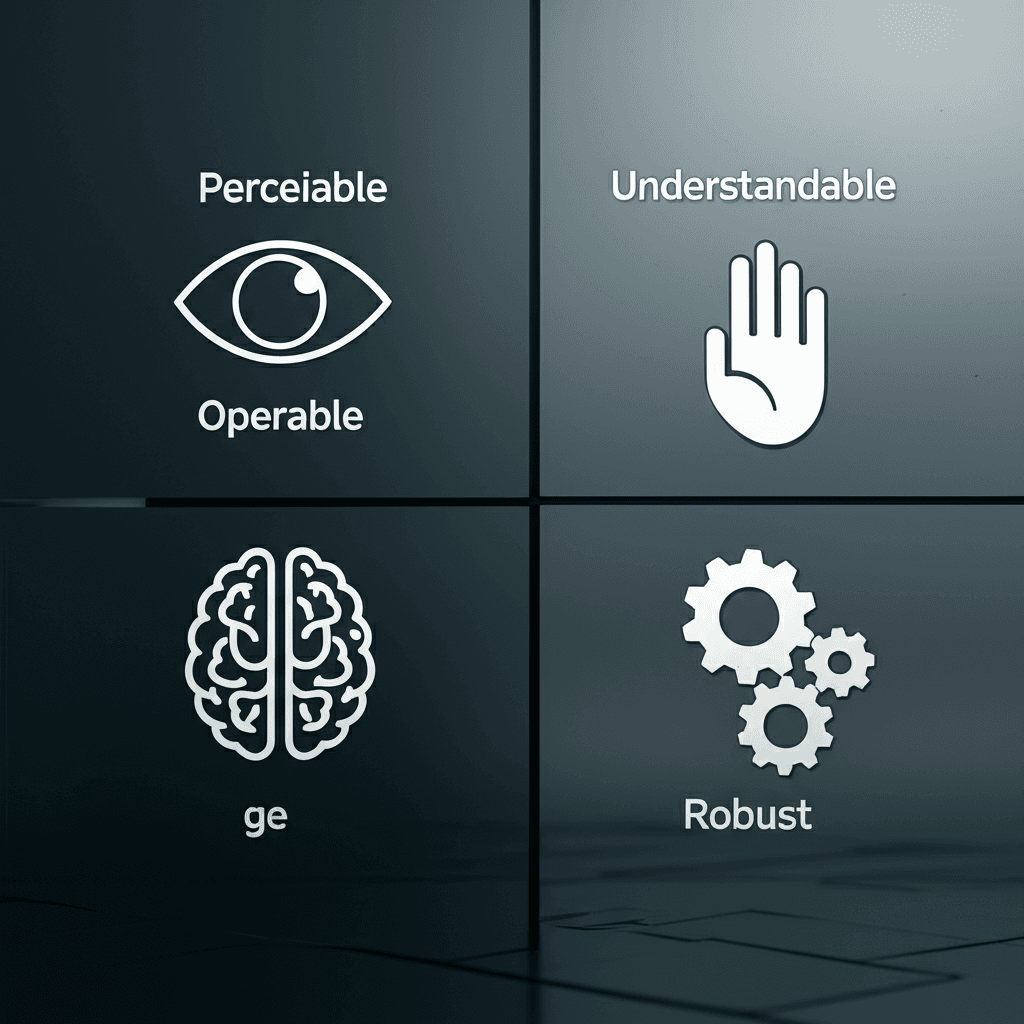
Now, you might be wondering how to organize all these guidelines into a practical framework. The W3C simplified this by building the WCAG standards on four foundational principles. Think of them as the pillars holding up the entire structure of web accessibility. If your site or application fails on any one of these, it can become unusable for certain people. We remember them with the acronym POUR.
Perceivable
This means users must be able to perceive the information being presented; it can’t be invisible to all of their senses. It’s about offering alternatives for different sensory abilities. For example, if you have a product image, a user with low or no vision needs a text alternative (alt text) that their screen reader can announce, like “A red wool sweater with a crew neck.” Similarly, a user who is deaf or hard of hearing needs captions or a transcript to understand the audio in a promotional video.
Operable
User interface components and navigation must be fully operable. Can someone use your website with just a keyboard? This is a core test of operability. All interactive elements—links, buttons, form fields—must be accessible and triggerable using the Tab, Shift+Tab, and Enter keys. A common failure here is a “keyboard trap,” where a user can tab into a component, like a pop-up newsletter subscription form, but cannot tab out of it or close it without using a mouse. This effectively traps them on one part of the page.
Understandable
Information and the operation of the user interface must be understandable. This pillar covers everything from readability to predictability. Are you using plain language instead of complex jargon? Is the navigation consistent across your entire website? Consider a checkout form. If a user enters their credit card number incorrectly, an understandable error message doesn’t just say “Invalid.” It says, “Please enter a 16-digit credit card number. You entered 15 digits.” This guidance helps the user identify and fix the mistake without confusion.
Robust
Content must be interpreted reliably by a wide variety of user agents, including browsers and assistive technologies. This is the most technical pillar, but it boils down to writing clean, standards-compliant code. When you use semantic HTML like <nav>, <main>, and <button> correctly, you provide a clear structure that screen readers and other tools can dependably interpret. Using a <div> with a click event to act like a button, for instance, often breaks this principle because it lacks the built-in keyboard accessibility and roles that a proper <button> element provides.
Practical WCAG 2.1 Checklist for Designers & Developers
Theory is one thing; implementation is another. Instead of memorizing every success criterion, focus on integrating these high-impact checks into your daily workflow. Getting these right will resolve a significant portion of common accessibility issues and build a strong foundation for your projects.
Text & Contrast
Your beautiful design is useless if people cannot read it. The most fundamental check is color contrast. For standard body text, you must ensure a contrast ratio of at least 4.5:1 against its background to meet the AA standard. Don’t guess. Use a tool like WebAIM’s Contrast Checker or the built-in accessibility inspectors in your browser. That trendy, light-gray text on a white background almost never passes, making your content a frustrating blur for users with low vision or color vision deficiencies.
Navigation & Structure
Can a user navigate your entire site using only their keyboard? Unplug your mouse and try it. You should be able to tab through every interactive element—links, buttons, form fields—in a logical sequence. A visible focus indicator, styled with :focus-visible, is essential so users know exactly where they are. Structurally, use heading tags (H1, H2, H3) to create a clear document outline. There should only be one <h1> per page, and you should never skip heading levels (e.g., going from an H2 to an H4) just for styling purposes.
Forms & Inputs
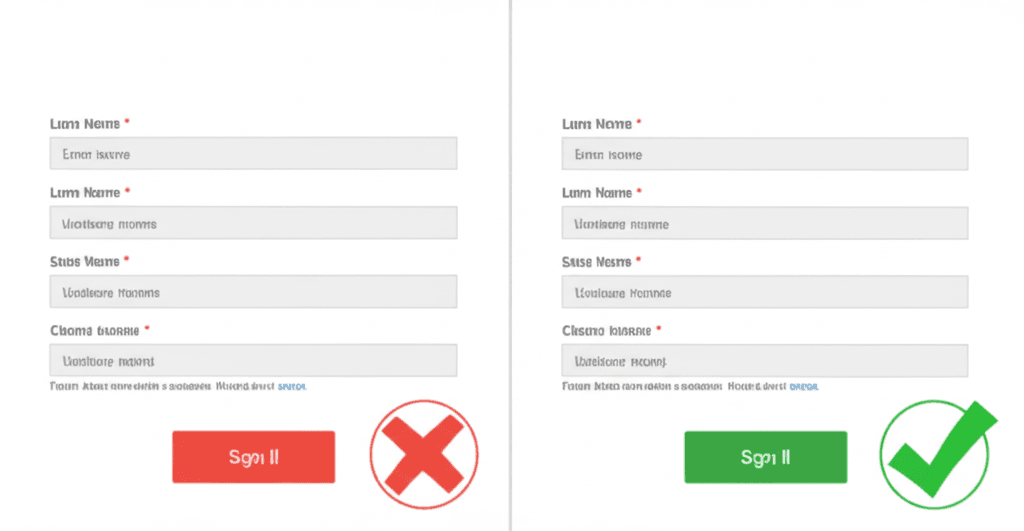
Every single form field needs a programmatic label. Use the <label> element with a for attribute that matches the input’s id. Placeholder text is not a substitute for a proper label. When a user makes a mistake, provide clear, descriptive error messages. Simply turning a form field’s border red isn’t enough. Instead of a generic “Invalid input,” tell the user precisely what is wrong and how to fix it: “Please enter your phone number in the format 555-555-5555.”
Images & Media
Every image that conveys information needs descriptive alternative text, or “alt text.” This text is read aloud by screen readers, providing context to visually impaired users. Write what the image is and what it does. If an image is purely decorative, like a background pattern, use an empty alt attribute (alt="") so screen readers can skip it. For videos, provide accurate, synchronized captions for all spoken content and a separate transcript file for users who prefer to read.
Responsive Design & Reflow
Accessibility and responsive design go hand-in-hand. Your layout must adapt gracefully without losing information or functionality when a user zooms in. The specific WCAG success criterion (1.4.10 Reflow) requires that content can be viewed at a 320 CSS pixel width—equivalent to 400% zoom on a 1280px screen—without forcing the user to scroll horizontally. Test this by zooming your browser. If content gets cut off or layouts break, you have work to do.
Essential Tools for Accessibility Testing
This brings us to something often overlooked: a solid testing process. Knowing the WCAG standards is half the battle; finding the actual flaws on your site is the other. Remember, automated tools are a great starting point, but they typically only catch about 30-40% of all accessibility issues. A truly accessible experience requires a combination of automated scanning and manual, human-led inspection.
Automated First-Pass Tools
Think of these as your first line of defense. They are excellent for catching low-hanging fruit like missing alt text, contrast errors, and improper heading structures. Install a couple of these as browser extensions for quick, on-the-fly checks:
WAVE and axe DevTools: These extensions overlay icons and analysis directly onto your page, providing immediate visual feedback.
Browser DevTools: Both Chrome Lighthouse and Firefox’s Accessibility Inspector are built right in. They provide audits that flag common problems and offer remediation advice within the development environment you already use.
Essential Manual Checks
Automation cannot tell you if an experience is usable. This is where you must step in. First, unplug your mouse. Try to complete a core task on your website, like filling out a contact form, using only the Tab, Shift+Tab, Enter, and Spacebar keys. Is the focus indicator always visible? Is the tab order logical? Next, learn the basics of a screen reader. Fire up NVDA (Windows) or VoiceOver (macOS) and listen to your site. You’ll quickly discover if your “Click Here” links provide enough context or if your images are described properly.
Comprehensive Auditing Platforms
For larger organizations or those needing to maintain compliance over time, dedicated platforms are the answer. Services like Siteimprove or Level Access offer site-wide scanning, ongoing monitoring, and detailed reporting that goes far beyond a browser extension. They help manage accessibility at scale, turning it from a one-time project into a continuous practice.
Integrating Accessibility into Your Workflow
Treating accessibility as a final checkbox before launch is a recipe for expensive rework and a frustrating user experience. The most effective teams make it a shared responsibility from day one. This means shifting the entire process left, embedding accessibility principles into every stage of the product lifecycle, from initial concept to final deployment.
Start at the Beginning: Design & Discovery
Before a single line of code is written, your design process can either set you up for success or failure. During wireframing, think beyond the visual layout. How will a keyboard-only user navigate through this page? Are the heading structures logical for someone using a screen reader? Annotate your Figma or Sketch files with intended heading levels (H1, H2, H3) and specify focus order for interactive elements. This gives developers a clear blueprint instead of leaving them to guess.
Build Accessible Components, Not Pages
If you use a design system, you have a powerful tool for consistency. Build accessibility directly into your core components. For instance, when creating a dropdown menu component, ensure it can be fully operated with a keyboard (up/down arrows to navigate, Enter to select, Esc to close). Define its ARIA roles and states from the start. Once that component is accessible, every instance of that dropdown across your entire application will inherit those properties, saving immense time and effort.
Empower Developers with Tools and Training
Your developers are your first line of defense. Equip them with knowledge of ARIA attributes and semantic HTML. Then, automate the easy stuff. Integrate automated accessibility linters, like axe-core or eslint-plugin-jsx-a11y for React projects, directly into your codebase. These tools act as a spell-check for accessibility, catching common errors like missing image alt text or improper button roles before the code is even committed.
Test with Real People
Automated tools can only catch a fraction of potential issues. The only way to truly understand if your site is usable is to watch people with disabilities use it. A recent project I worked on passed all automated checks, but our user testing with a screen reader user revealed a major flaw. Our “Add to Cart” confirmation message appeared visually, but it wasn’t announced by the screen reader. The user had no idea if their action was successful. This simple, powerful feedback led to a one-line code change that fixed a massive usability gap—something no automated scanner would have ever found.
From Principles to Practice
Building an accessible web is fundamentally about building a better web for everyone. The most effective accessibility strategy isn’t a final audit; it’s a continuous practice woven into your design and development process. This user-centric mindset informs every choice, from color contrast in a mockup to ARIA labels in the final code. This approach doesn’t just ensure compliance—it creates superior, more usable products for your entire audience, driving engagement and expanding your reach.
Ready to make an impact? Take one specific, actionable step right now. Use one of the tools recommended in this guide to run an automated accessibility audit on your homepage. This simple test will reveal immediate opportunities to make a tangible difference for your users and begin building a more welcoming digital experience for all.
Frequently Asked Questions
What is the difference between WCAG 2.1 and 2.2?
WCAG 2.2 builds upon 2.1 by adding new success criteria, primarily focused on improving accessibility for users with cognitive or learning disabilities, low vision, and motor disabilities. It doesn't deprecate anything from 2.1, so conforming to 2.2 also means you conform to 2.1.
Is web accessibility a legal requirement?
In many countries, yes. Laws like the Americans with Disabilities Act (ADA) in the US and the European Accessibility Act (EAA) have been interpreted by courts to apply to websites, especially for public accommodations and government services. Conforming to WCAG is the most common way to demonstrate compliance.
What's the difference between A, AA, and AAA conformance levels?
Level A is the most basic level of accessibility. Level AA is the intermediate level and is the most common target for websites, as it addresses the most significant barriers for users. Level AAA is the highest level and can be difficult to achieve for all content.